
The real trade-off
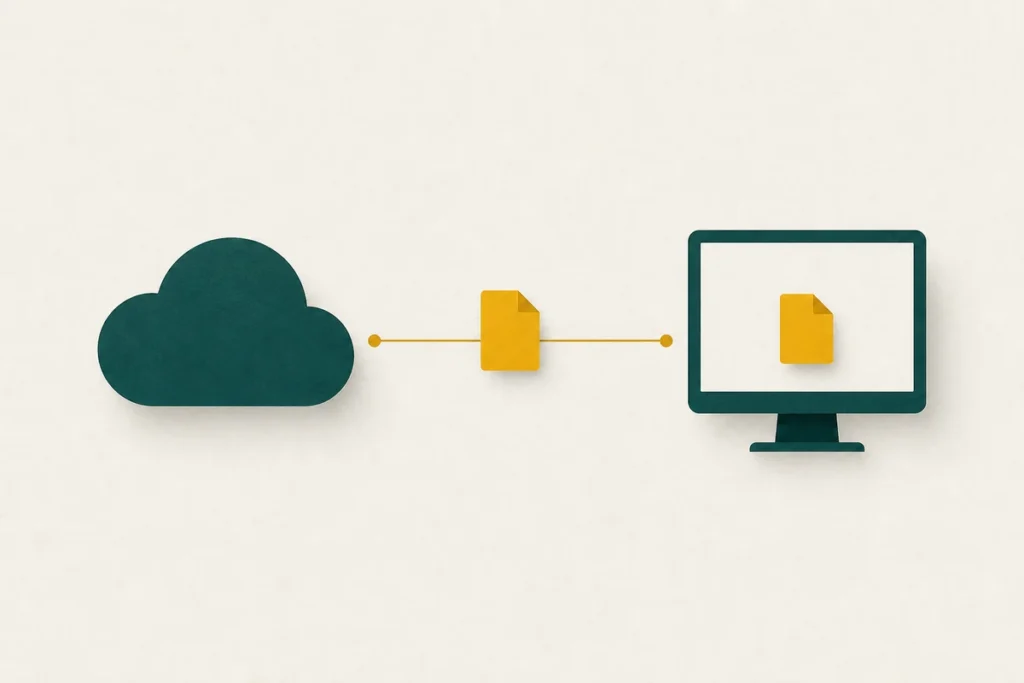
Both approaches produce the same kind of archive. The difference is where the work happens. A desktop tool compresses on your own machine; a browser-based service usually uploads your files to a server, compresses them there, and sends back the result. That single distinction drives every other consideration: privacy, file-size limits, speed and reliability.
At a glance
| Consideration | Online tool | Desktop tool |
|---|---|---|
| Install needed | None | One-time install |
| Files leave your device | Usually yes (uploaded) | No |
| Practical size limit | Often capped | Limited only by disk |
| Works offline | No | Yes |
| Speed for large jobs | Bound by your upload speed | Bound by your processor |
When an online tool makes sense
Browser services are genuinely convenient for small, non-sensitive jobs: zipping a couple of documents on a borrowed computer, or extracting an archive when you cannot install anything. Nothing to set up, nothing to maintain. For a handful of public files that you would not mind anyone seeing, the upload step is a fair trade for the convenience.
Treat anything you upload to a web service as having left your control. Reputable tools delete files after a short window, but you are trusting a third party with the contents and the connection. For anything personal, financial, medical or confidential, compress on your own device instead.
When a desktop tool is the better call
Local software wins whenever the files are large, sensitive, or numerous. Because the work happens on your machine, there is no upload wait and no size ceiling beyond your own disk, and the data never travels anywhere. Built-in features handle the common cases: Windows, macOS and Linux all create and open .zip archives without any install, and a free tool adds .7z and .rar when you need stronger compression or more options. For a recurring task, a tool you already have beats a page you have to find again.
A note on browser-only tools
A small number of web tools now compress entirely inside your browser, without uploading anything. These keep the no-install convenience while keeping files on your device. They are a reasonable middle ground when they genuinely run locally, but it is worth confirming that claim – if a service shows an upload progress bar, your files are going to a server.
The way to tell the difference is to watch what happens after you choose a file. A tool that processes locally produces its result almost instantly and never displays an upload bar, because nothing is being sent. The tools on this site work exactly that way: the zip, unzip and compression-calculator widgets read your files in the browser using a built-in compression feature, so the data never travels to a server. That gives you the convenience of an online tool with the privacy of a desktop one – useful for a quick, private job when installing software is not worth the trouble. For very large or frequent jobs, a dedicated desktop archiver is still the steadier choice.
A simple rule of thumb
- Small, public, one-off, on a device you do not own – an online tool is fine.
- Large, private, repeated, or on your own machine – use the built-in or installed desktop tool.
Whichever route you take, the result is an ordinary archive. The opening guide covers extracting it on any platform, and the format comparison helps you pick what to create.
Frequently asked questions
Are online compression tools safe to use?
For small, non-sensitive files, generally yes. The risk is that your files are uploaded to a third-party server. For anything private, compress on your own device instead.
Why do online tools limit file size?
Every file has to be uploaded and processed on their servers, which costs bandwidth and storage. Caps keep that manageable. Desktop tools have no such limit beyond your own disk space.
Is desktop compression faster?
For large files, usually yes, because there is no upload step. Online speed is limited by how fast you can send the files; local speed is limited only by your processor.
Do I need to install anything to zip a file on my computer?
No. Windows, macOS and Linux can all create and open .zip archives out of the box. You only need a tool for stronger formats like 7z.
Can a website compress files without uploading them?
A few modern tools do all the work inside your browser, so files never leave your device. If you see an upload progress bar, though, the files are being sent to a server.