
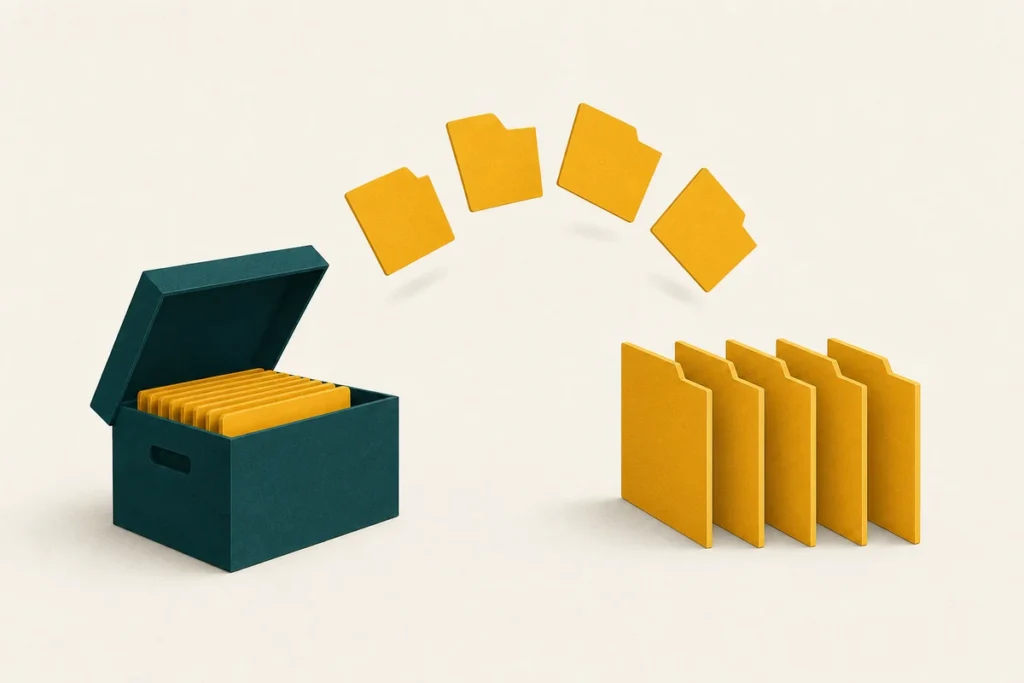
Open a .zip to see what is inside, then save any file from it – or all of them. The archive is read here in your browser, not uploaded, so it works for private archives too.
How to use it
- Drop a .zip onto the box above, or click to choose one.
- The contents appear in a list with each file’s size and how much space it saved inside the archive.
- Select Save next to a single file, or Save all files to pull everything out.
What it can open
The tool reads standard .zip archives, including those whose contents were compressed with the usual deflate method or simply stored without compression. It reads the archive’s internal directory to list the files first, so you can see exactly what is inside before saving anything – handy when you only need one document out of a large archive.
If the tool reports that the file is not a valid ZIP, the download was most likely incomplete – a partly downloaded archive cannot be read. Downloading it again usually fixes it. Formats other than ZIP, such as .rar and .7z, need a dedicated extractor; this tool focuses on ZIP, the format you meet most often.
A note on passwords and other formats
Password-protected (encrypted) archives cannot be opened without the password by design, and this tool does not attempt to. If an archive asks for a password, you will need it from whoever created the file. For .rar or .7z archives, a desktop tool is the way to go – the guide to opening archives covers every platform and format, including what to do when extraction fails.
Where files are saved
Saved files go wherever your browser places downloads, usually your Downloads folder. When you choose Save all, each file is offered as a separate download so they keep their original names. Folder paths stored inside the archive are shown in the listing, so you can see the original structure before deciding what to pull out. If you would rather create an archive than open one, the zip tool does the reverse, and the compression calculator shows how much a file would shrink before you pack it.
Frequently asked questions
Is the ZIP uploaded when I open it?
No. The archive is read entirely within your browser. Nothing is sent to a server, so even confidential archives are safe to open here.
Can I extract just one file from a large ZIP?
Yes. The contents are listed first, and each file has its own Save button, so you can pull out a single item without extracting the rest.
Why does it say my file is not a valid ZIP?
Usually the download was incomplete, which leaves the archive unreadable. Downloading it again normally resolves it. The tool also only reads ZIP, not RAR or 7z.
Can it open a password-protected archive?
No. Encrypted archives are unreadable without the password by design. You will need the password from whoever created the file.
Where do the extracted files go?
To your browser’s normal download location, typically the Downloads folder, each keeping its original filename.